
How to fix heading numbering in Word? Most heading numbering problems come from one of three causes: a number typed by hand on top of the automatic one, numbering that was removed or reformatted by hand, or a heading applied at the wrong level. Each one has a simple manual or automatic fix, and each one is worth catching before a document goes out for review or submission.
Quick Summary
- Duplicated numbers: Delete the number that was typed by hand and keep the automatic one.
- Missing or reformatted numbers: Reapply the heading style from the Styles pane on the Home tab.
- Out of sequence: Apply the correct heading level so that no heading skips a level.
- OnStyle: Finds all three problems and offers one-click fixes for duplicated and reformatted numbering.
Quick Steps
- Click into the heading that shows the problem.
- If the heading shows two numbers, delete the one that was typed by hand and keep the automatic number.
- If a number is missing or wrong, reapply the heading style from the Styles pane on the Home tab.
- If the heading is at the wrong level, apply the correct heading style so that it goes no more than one level deeper than the heading above it.
- (Optional) Run a validation with OnStyle to check the heading numbering of the whole document, and apply the fixes.
With OnStyle
OnStyle checks heading numbering against the rules in its DocConfig (OnStyle’s set of rules). The Heading Numbering Issue and Heading Out of Sequence inspections are part of the Essential edition, and in the Professional edition the Duplicated Heading Numbering inspection finds headings that carry both a typed and an automatic number. The Remove Duplicated Heading Numbering correction deletes the typed number, and the Reset Paragraph Format correction reapplies the heading style.
- Start a validation.
- In the Inspection Results pane, find the heading numbering issues.
- Select Remove Duplicated Heading Numbering or Reset Paragraph Format for an issue. Heading Out of Sequence has no one-click fix, so apply the correct heading style to that heading yourself.
Why Heading Numbering Errors Matter
Heading numbers drive the table of contents and every cross-reference built on them. When one heading is numbered wrong, the whole document becomes inconsistent, and the error can carry into the table of contents of the version you submit.
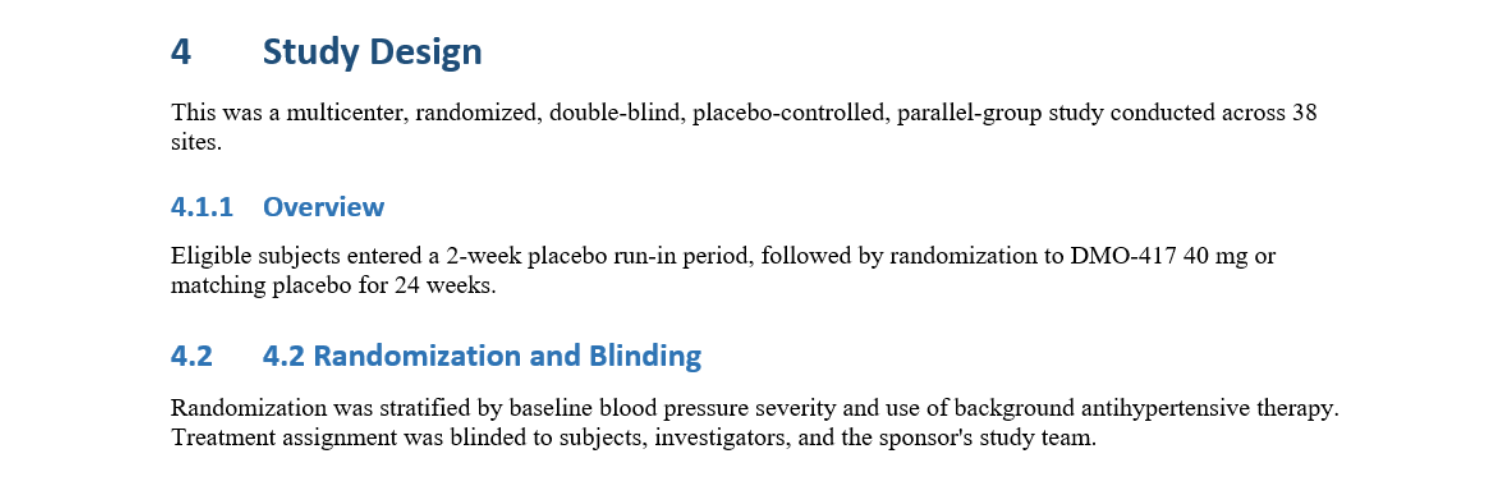
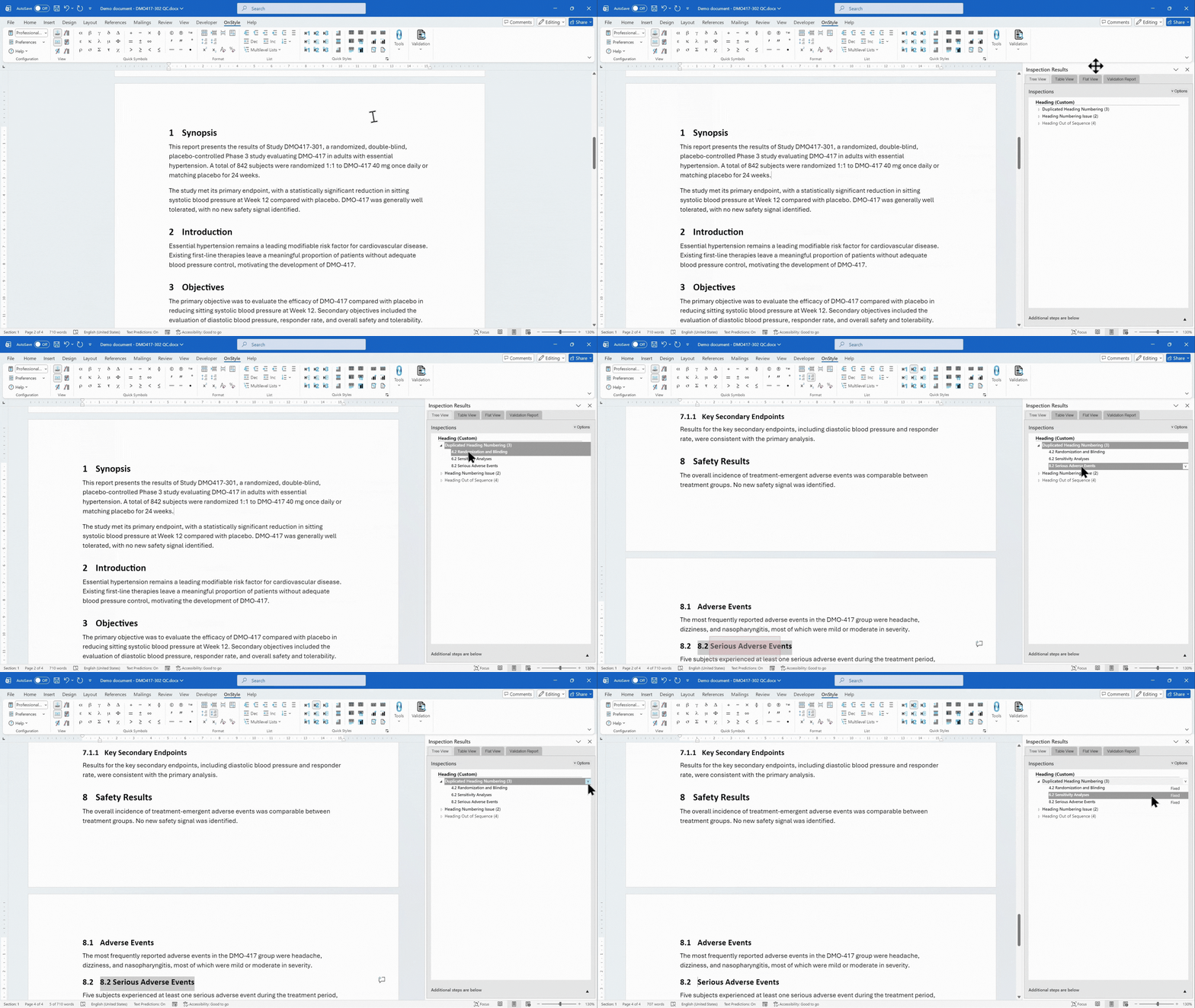
These errors are also easy to miss. A heading such as 4.2 4.2 Randomization and Blinding has two numbers, yet a heading like this can get all the way through review unnoticed. In regulated documents such as protocols and CSRs (clinical study reports), accurate numbering, section references, and structure matter for submission.
How Automatic Heading Numbering Works in Word
Word can number your headings automatically. The heading styles carry a linked numbering scheme, so each heading gets its number from its level and position in the document. For example:
- Heading 1 becomes 5.
- Heading 2 becomes 5.1.
- Heading 3 becomes 5.1.1.
The numbering is meant to update itself when sections are added, deleted, or moved. In regulated documents, though, automatic numbering can break in a few specific ways. The sections below explain how to fix heading numbering in Word for each one.
How to Fix Duplicated Heading Numbering
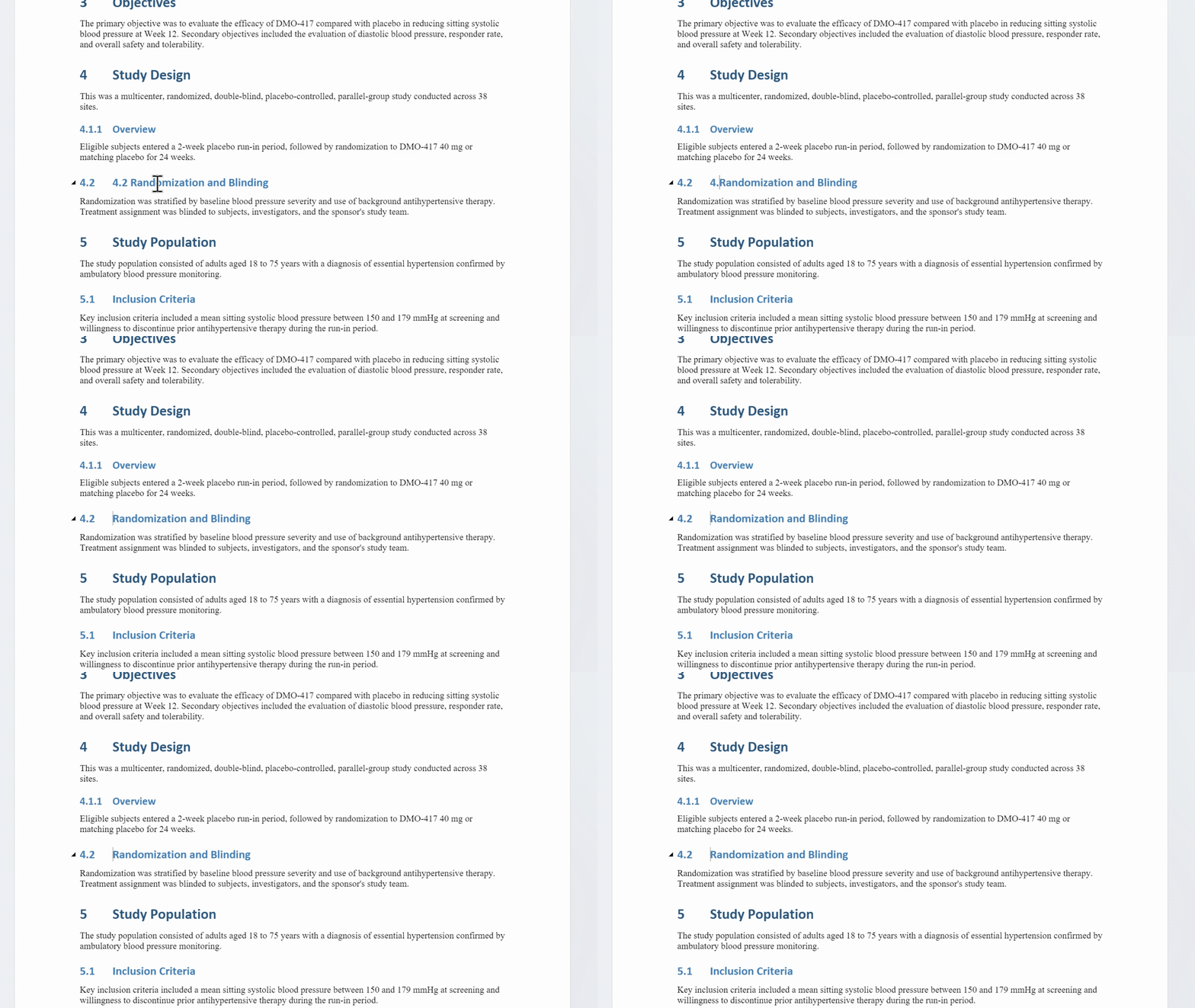
Duplicated heading numbering happens when someone types a number in front of a heading by hand, often before the document’s real style set is applied. When the heading style is applied later, it adds its own automatic number, and the heading ends up with both. In 4.2 4.2 Randomization and Blinding, one “4.2” comes from the heading style and the other was typed.
Step 1: Click into the heading. Place your cursor in the heading that shows two numbers.
Step 2: Delete only the typed number. Delete the number that was typed by hand. Leave the number that the heading style adds automatically.

Warning
Do not delete the automatic number or switch off numbering for the heading to get rid of a double number. The heading would then stop following the numbering scheme, and you would create a different numbering problem.
How to Fix Missing or Reformatted Heading Numbers
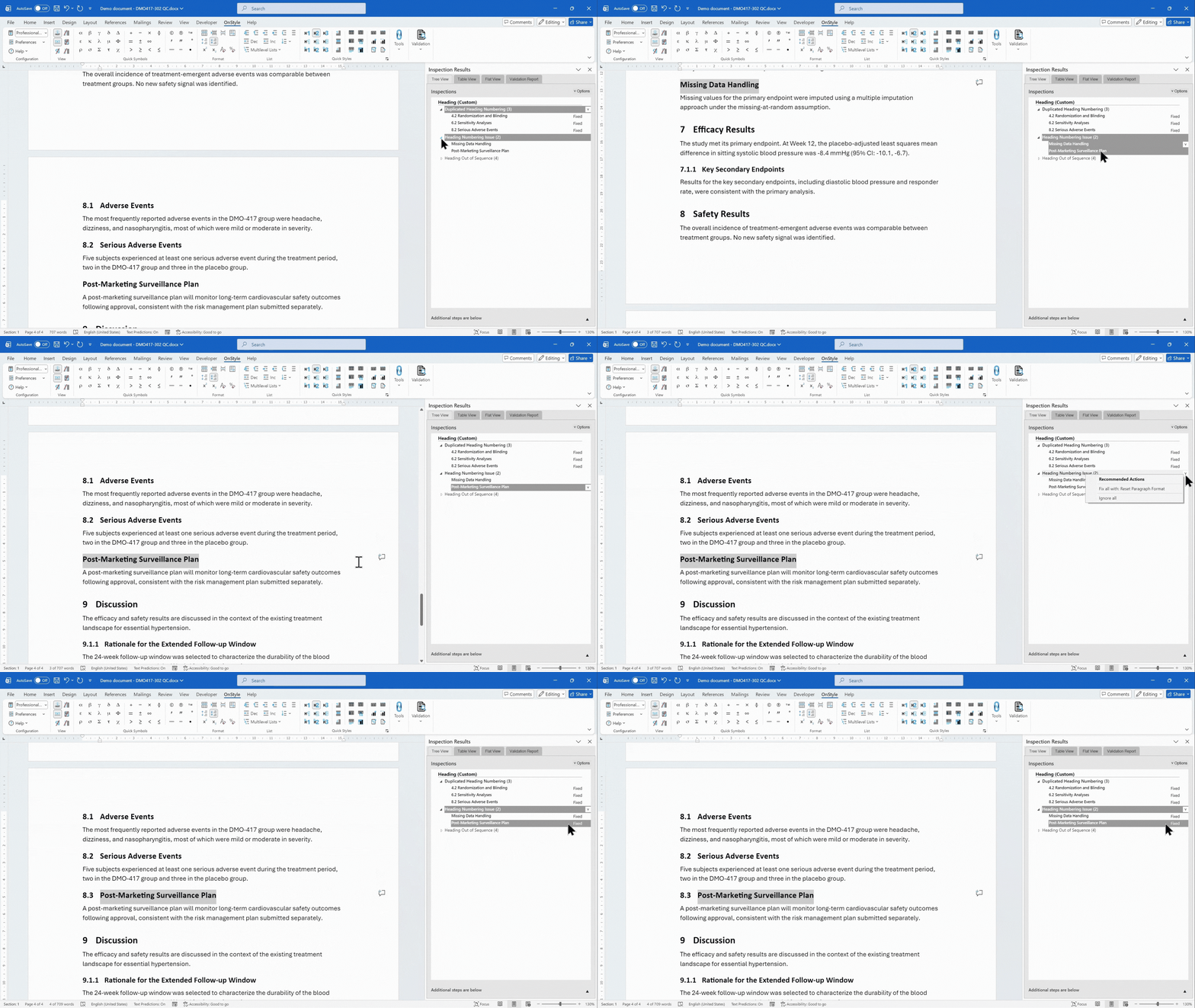
A heading’s numbering can also be removed or reformatted by hand, for example by setting it to a specific value or restarting it from 1. Once that happens, the paragraph no longer follows its style definition. It can show no number where one is expected, or a number that does not fit the sequence.
Step 1: Select the paragraph. Select the heading that has missing or incorrect numbering.
Step 2: Reapply the heading style. On the Home tab, reapply the correct heading style, such as Heading 2, from the Styles pane. To open the Styles pane, select the dialog box launcher in the bottom-right corner of the Styles group.
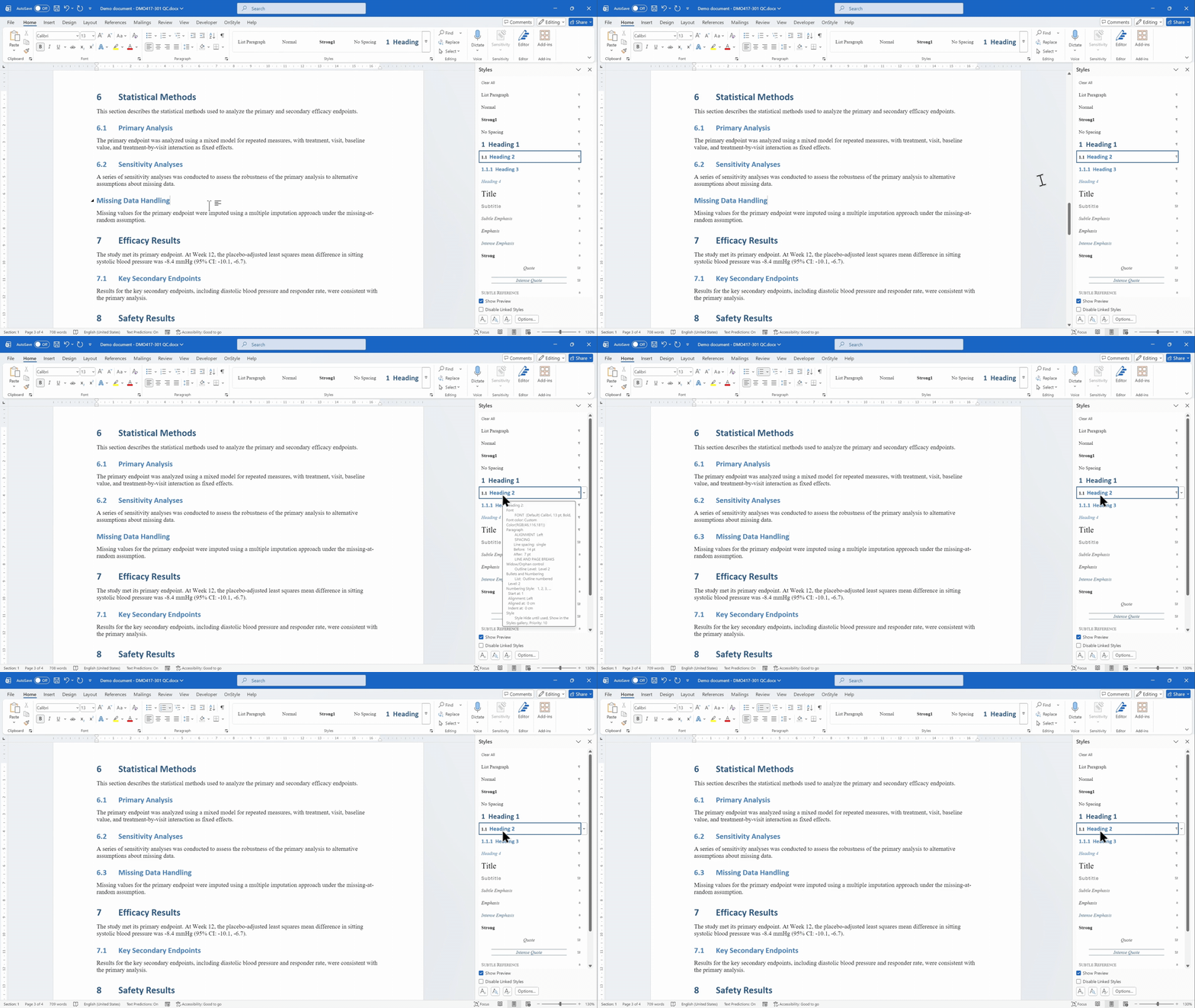
Step 3: Check the result. The automatic number comes back with the style. Confirm that it now fits the sequence of the headings around it.
How to Fix Headings Out of Sequence
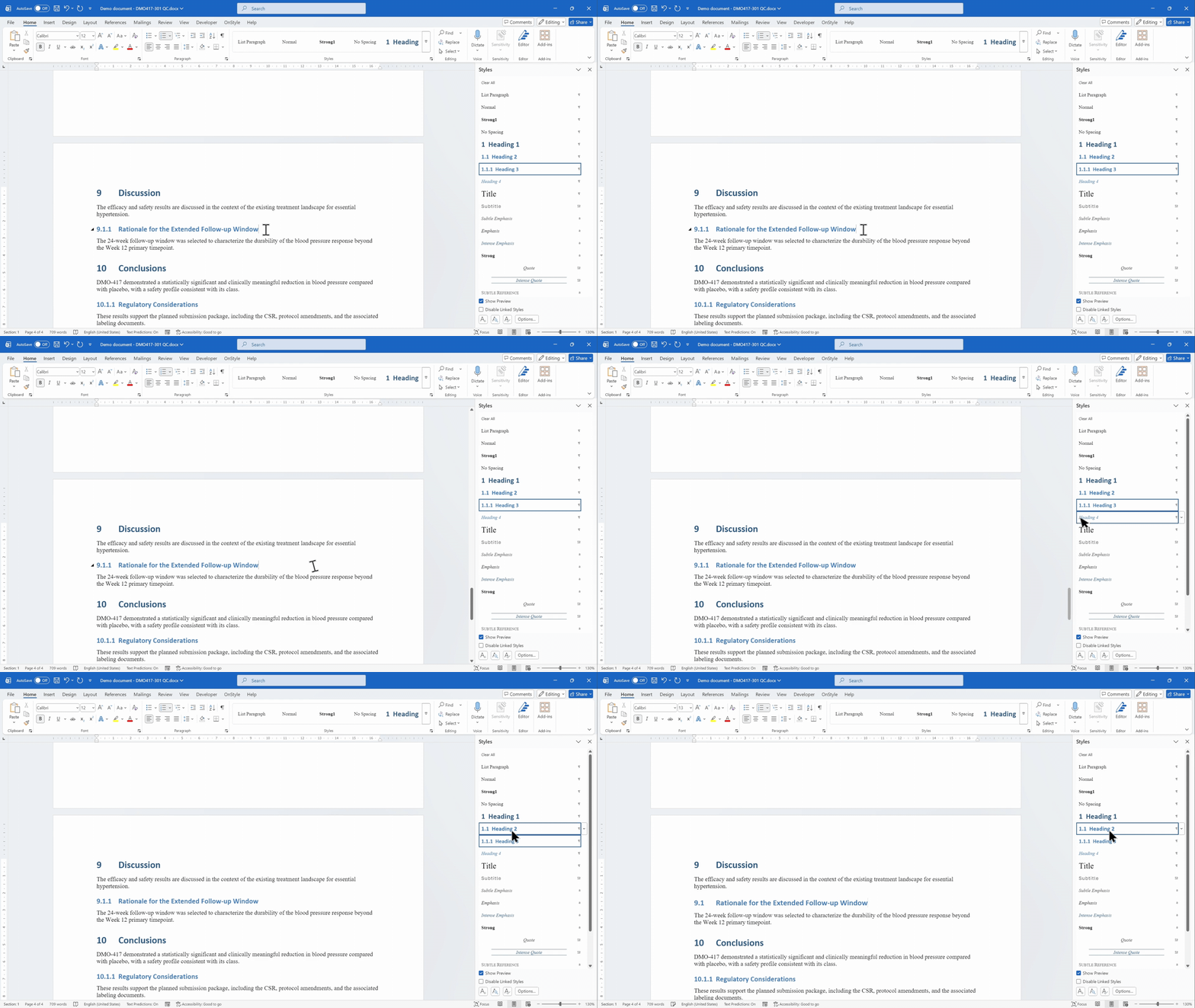
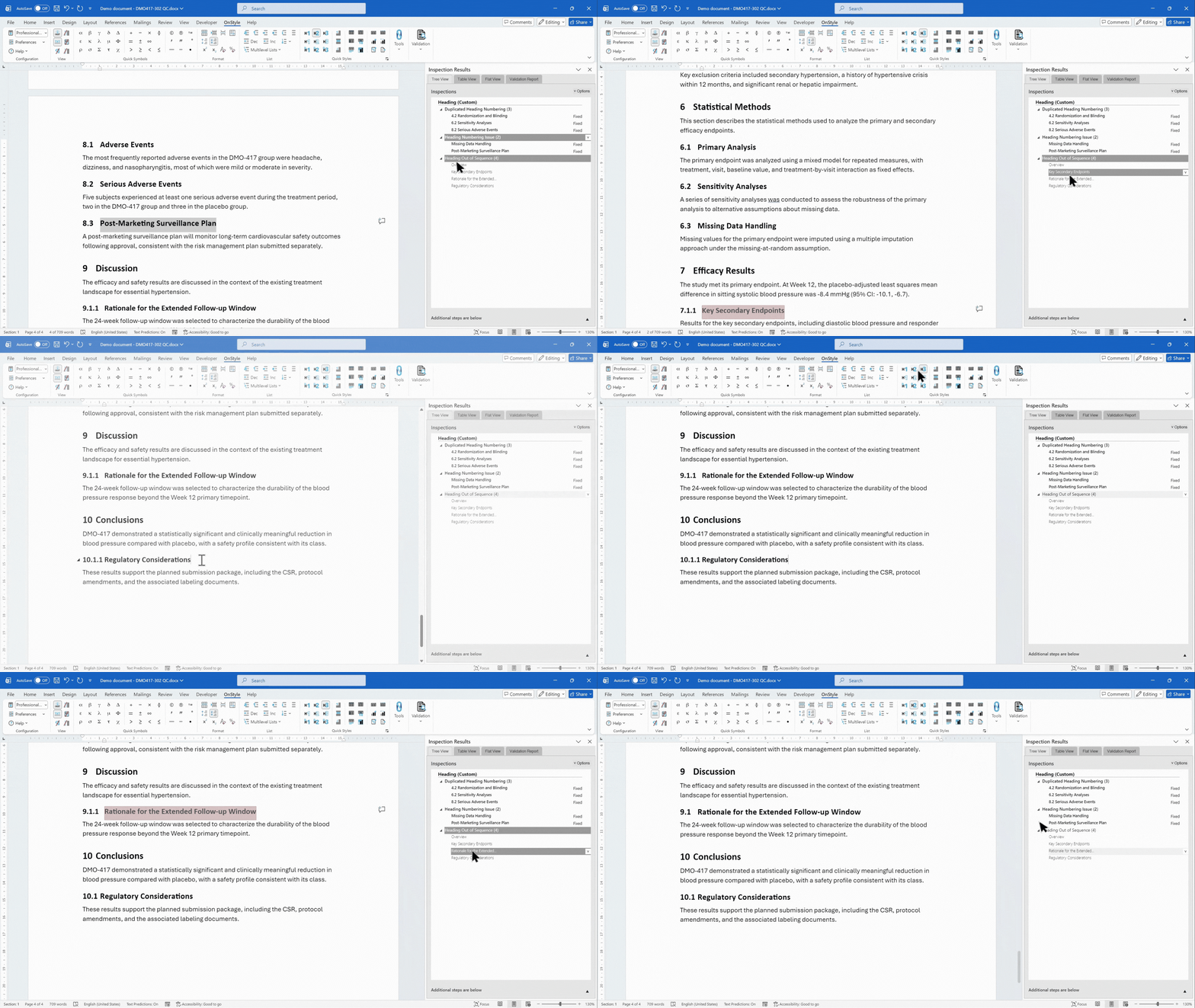
A heading can also be out of sequence entirely. For example, a Heading 3 appears where a Heading 2 was expected, which skips a level that the sequence rules do not allow. This happens most often when content is pasted in from another document or restructured under deadline.
Step 1: Compare the heading with the ones above it. Check the heading’s level against the headings before it. A heading should go no more than one level deeper than the heading directly above it.
Step 2: Apply the correct heading level. Select the heading and apply the correct heading style on the Home tab or from the Styles pane.

Tip
To review heading levels at a glance, go to View > Navigation Pane. Headings appear as an indented outline, which makes skipped levels easier to spot.
How OnStyle Finds and Fixes Heading Numbering Issues
OnStyle is a Microsoft Word add-in built for regulated documents. It supports faster document authoring and validation against predefined company or industry formatting standards. Its authoring tools help apply consistent styles, headings, tables, numbering, and other document elements while a document is written, and its validation tools include hundreds of checks for technical, structural, and formatting issues.
When you run a validation, the OnStyle results pane lists every heading numbering issue in the document, grouped bycategories
Duplicated Heading Numbering
This checkflags every heading that has both a manually typed number and the style’s automatic number. Fix it with Remove Duplicated Heading Numbering. OnStyle deletes the typed number from the start of the heading and keeps only the automatic one.
Heading Numbering Issue
This check lists every heading whose numbering was manually removed or reformatted, such as by setting it to a specific value or restarting it from 1. It also lists any paragraph that should have a number but does not. Select Reset Paragraph Format, and OnStyle reapplies the heading style to the paragraph, bringing back the correct automatic number.
Heading Out of Sequence
This check has no one-click fix. Instead, it points to the exact heading that skips a level. So instead of scanning a 400-page document level by level, you check the one heading it flags and apply the correct heading style.
Summary: How to Fix Heading Numbering in Word
To fix heading numbering in Word, first identify which of the three problems you are dealing with:
- Duplicated heading numbering: Delete the typed number and keep the automatic one.
- Missing or reformatted numbering: Reapply the heading style from the Styles pane so the automatic number comes back.
- Heading out of sequence: Compare the heading with the ones above it and apply the correct heading level.
Because heading numbers drive the table of contents and cross-references, even one wrong number can cause problems across the document. In long or multi-author regulated documents, OnStyle lists every heading numbering issue at once, fixes duplicated and broken numbering in one click, and points you straight to any heading that is out of sequence.